

Inactivate WordPress new editor Gutenberg 2019
Not fond of the new editor in WordPress? Or maybe it broke your theme’s built in editor? You can actually switch back to the classic editor with a simple plugin. Simply follow these instructions:
1. Add the plugin ”Classic Editor”
Login to your WordPress site and navigate to Plugins -> Add New (or ”Tillägg -> Lägg till nytt” if you have swedish language in WordPress)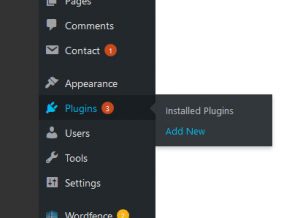
In the top right search field, enter ”classic editor”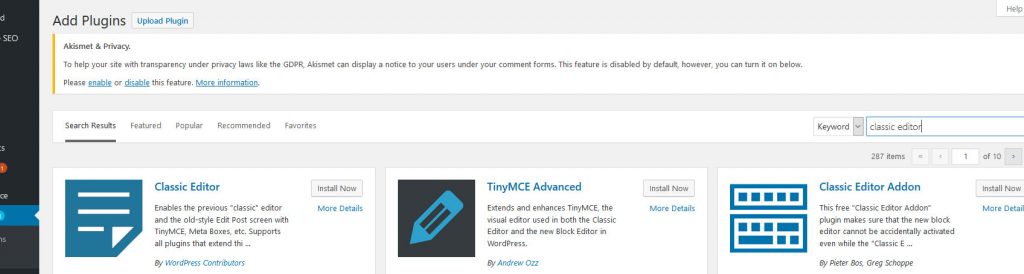
Click ”Install” on the Classic Editor plugin (leftmost one in the image above).
When installation is finished, the button changes to ”Activate”. Click it.
2. Classic Editor Settings
When you have activated the plugin, WordPress will automatically take you to the list of plugins.
Under Classic Editor, click ”Settings”. This will take you to the Settings -> Writing page, with the editor settings highlighted. 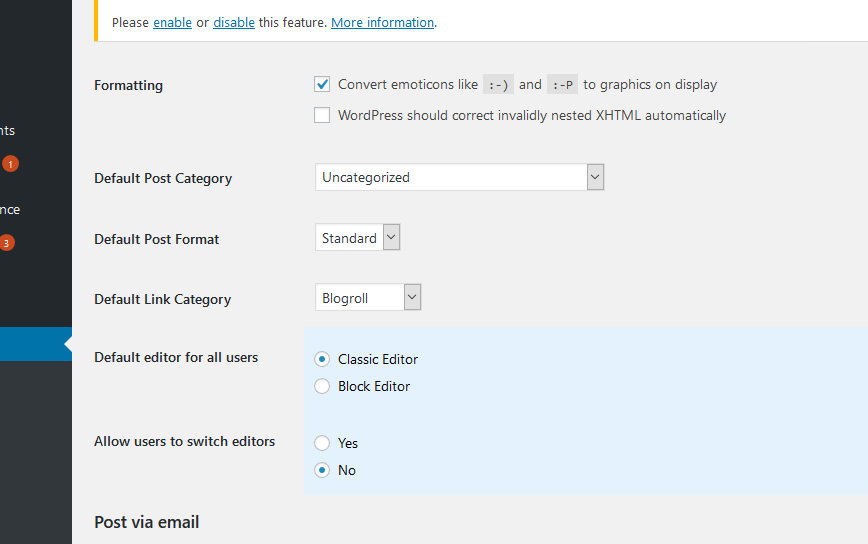
Select ”Classic Editor”.
You can choose to make the switch mandatory or let users select by themselves. If your theme’s editor is broken, best option is probably to not allow users to switch editor.
Click ”Save changes” at the bottom of the page.
If you chose to let users select by themselves, they will now see the links ”Block Editor” and ”Classic Editor”


